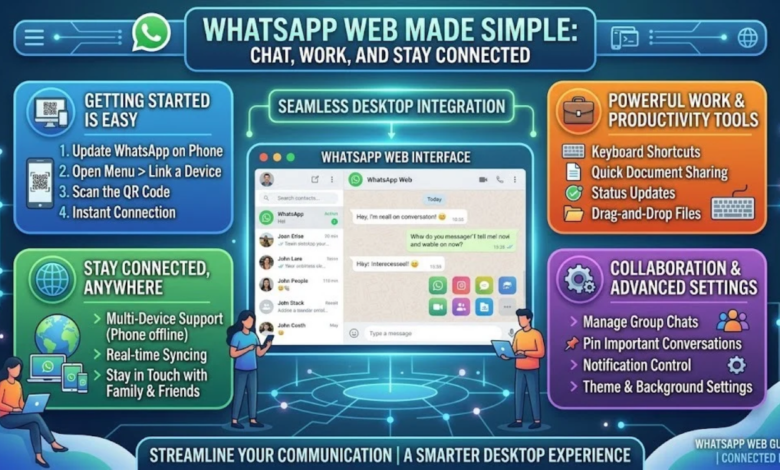
WhatsApp Web has become a convenient way to use WhatsApp conversations on a larger screen without constantly switching between a smartphone and a computer. For people in the United Kingdom, United States, and other markets, it provides a practical solution for messaging while working, studying, browsing the internet, or managing everyday communication.
Instead of typing long messages on a phone, users can connect their WhatsApp account to a web browser and continue conversations from a desktop or laptop. WhatsApp Web also supports many familiar WhatsApp functions, making it useful for both personal and professional communication.
What Is WhatsApp Web?
WhatsApp Web is the browser-based version of WhatsApp that allows users to access their conversations from a computer. It works by linking a WhatsApp account on a smartphone with a compatible web browser on a computer.
Once connected, chats can be viewed and managed from the computer. Messages sent through WhatsApp Web remain part of the user’s regular WhatsApp account, so there is no need to create a separate account specifically for the web version.
The service is particularly useful for people who spend several hours at a computer. A physical keyboard can make writing messages faster, while a larger display makes conversations, documents, images, and shared information easier to view.
How WhatsApp Web Works
WhatsApp Web connects a browser session with an existing WhatsApp account. The initial connection requires the user to authenticate the computer through the WhatsApp application on a phone.
After the connection has been established, the browser can display the user’s WhatsApp conversations and other supported account information. The exact experience can vary depending on the browser, operating system, WhatsApp version, and available features.
The important point is that WhatsApp Web is not normally a completely independent messaging account. It is an extension of the WhatsApp experience that lets users communicate through a computer.
How to Log In to WhatsApp Web
Using WhatsApp Web is relatively straightforward. The user first opens the WhatsApp Web service in a supported desktop browser. The page provides instructions for connecting the browser session with the WhatsApp account.
The WhatsApp application on the phone is then used to authorize the connection. Depending on the current version of the application, the account-linking process may use a QR code or another supported authentication method.
After successful verification, the conversations can appear in the browser. Users can then select a chat, write messages with their computer keyboard, and continue communicating from the larger screen.
WhatsApp Web Features
WhatsApp Web provides many functions that make computer-based messaging convenient. Users can send and receive text messages, respond to conversations, share supported media, and interact with group chats from their browser.
Typing is one of its biggest advantages. A full-size keyboard can be considerably more comfortable than a smartphone keyboard when writing detailed messages, especially during work or study.
Users can also search through conversations and manage chats using the browser interface. The availability of specific features can change as WhatsApp updates its web experience, so some functions may appear differently over time.
WhatsApp Web for Work and Study
WhatsApp Web can be useful when communication is part of a daily computer-based routine. Employees may use it to respond to colleagues, coordinate activities, or communicate with clients and contacts while working at a computer.
Students can also find it convenient when they need to communicate with classmates or participate in group discussions while studying. Having WhatsApp available beside other browser tabs can reduce the need to repeatedly pick up a phone.
However, constant notifications can also become distracting. Managing notification settings and keeping conversations organized can help users maintain focus while still remaining reachable.
WhatsApp Web on Different Browsers
WhatsApp Web is designed to work through modern web browsers. The experience may vary slightly between browsers because of differences in operating systems, browser versions, permissions, and device settings.
If WhatsApp Web does not work correctly, updating the browser is one sensible troubleshooting step. Users should also make sure that their internet connection is stable and that the WhatsApp application on the phone is functioning normally.
Clearing browser data or trying another supported browser can sometimes help when a session fails to load correctly.
WhatsApp Web and Privacy
Privacy is an important consideration when using WhatsApp Web, particularly on shared or workplace computers. A user should be careful about leaving an active WhatsApp session open where another person could access conversations.
When using a public computer, library computer, office workstation, or another device that other people can access, it is especially important to check linked devices and disconnect sessions that are no longer needed.
Users should also avoid sharing account verification information with other people. Keeping the smartphone and associated account protected adds another layer of security to the overall WhatsApp experience.
WhatsApp Web Security Tips
Using WhatsApp Web securely starts with controlling which computers are connected to the account. Users should periodically review linked devices and remove unfamiliar or unnecessary sessions.
A computer should also have appropriate security protections, including a strong operating-system password and sensible browser security settings. Locking the screen when stepping away from a computer is another simple but effective habit.
Users should be cautious with unexpected messages, suspicious files, and unfamiliar links. WhatsApp Web makes communication convenient, but normal online safety practices still apply.
WhatsApp Web Troubleshooting
Sometimes WhatsApp Web may fail to connect, display conversations incorrectly, or become slow. Internet connectivity is one of the first things worth checking because both the computer and phone experience can depend on network conditions.
Refreshing the browser page, restarting the browser, or reconnecting the linked device may resolve temporary problems. Keeping WhatsApp and the browser updated can also help maintain compatibility.
If the problem continues, checking the linked-device settings on the phone can reveal whether the computer is still authorized. Removing an old connection and establishing a fresh session may help in some circumstances.
WhatsApp Web vs Using WhatsApp on a Phone
The main difference between WhatsApp Web and the mobile application is the device experience. The phone application is designed specifically for smartphones, while WhatsApp Web provides a computer-focused interface.
A smartphone remains convenient for communication while travelling or away from a desk. WhatsApp Web becomes more useful when a person is already working at a computer and wants to communicate without moving between devices.
The two experiences can complement each other rather than replacing one another. Many users naturally switch between their phone and computer depending on where they are and what they are doing.
WhatsApp Web for Personal Communication
For everyday users, WhatsApp Web can make conversations more comfortable when sitting at a desk. Long messages, group discussions, shared images, and other content can be easier to handle on a larger display.
Families and friends can continue their regular WhatsApp conversations while using a laptop or desktop computer. The convenience is particularly noticeable when users are already spending time online for work, entertainment, shopping, or research.
Because WhatsApp Web is connected to an existing account, users can continue using their familiar conversations rather than starting again with a separate messaging platform.
The Future of WhatsApp Web
Messaging habits continue to change as people increasingly use multiple devices throughout the day. Browser-based messaging gives users flexibility by extending communication beyond a smartphone.
WhatsApp Web is likely to remain useful because computers continue to play an important role in professional, educational, and personal communication. Improvements to browser compatibility, account management, privacy, and cross-device functionality can further improve the experience.
For users who regularly work on laptops or desktop computers, having access to WhatsApp through a browser can remain a practical part of everyday digital communication.
Conclusion
WhatsApp Web provides a simple way to bring an existing WhatsApp experience to a computer. Its larger interface, keyboard support, and convenient access to conversations make it useful for work, study, and personal communication.
Users can get the most from WhatsApp Web by keeping their devices updated, monitoring linked sessions, protecting their accounts, and using extra caution on shared computers. With sensible security habits, WhatsApp Web can be a convenient extension of everyday messaging.
FAQs
What is WhatsApp Web?
WhatsApp Web is the browser-based version of WhatsApp that allows users to access and manage their WhatsApp conversations from a computer. It connects to an existing WhatsApp account rather than requiring a separate account.
How do I use WhatsApp Web?
Open WhatsApp Web in a supported browser and follow the account-linking instructions shown on the screen. Use the WhatsApp application on your phone to authorize the computer connection.
Can I use WhatsApp Web without my phone?
WhatsApp supports linked-device functionality that can allow continued use of linked devices even when the primary phone is not continuously connected. However, account setup and management still involve the WhatsApp application and primary account.
Is WhatsApp Web free?
WhatsApp Web itself does not normally require a separate subscription fee. Users access it as part of the WhatsApp service, although internet or mobile data charges can apply depending on the network provider.
Is WhatsApp Web safe?
WhatsApp Web can be used safely when users protect their account and computer. Checking linked devices, avoiding unfamiliar links and files, and logging out from shared computers are important security practices.
Can I use WhatsApp Web on a laptop?
Yes. WhatsApp Web is designed to provide WhatsApp access through a computer browser, including compatible laptops and desktop computers.
Why is WhatsApp Web not connecting?
Connection problems can result from internet issues, browser problems, outdated software, or an expired or disconnected linked session. Refreshing the page, checking connectivity, updating software, and reviewing linked devices can help.
Can I use WhatsApp Web on multiple computers?
WhatsApp supports linked devices, allowing an account to be connected with supported additional devices. Users should regularly review linked devices and remove computers they no longer recognize or use.
Does WhatsApp Web save my chats on the computer?
WhatsApp Web provides access to conversations through the linked account and browser session. The exact handling of locally stored information can depend on the browser, device, and current WhatsApp implementation.
Can I log out of WhatsApp Web remotely?
Users can manage linked devices through WhatsApp and disconnect sessions when necessary. This is especially useful if a computer has been lost, shared with someone else, or is no longer trusted.
Read More: DIRECTV Stream: Plans, Channels, Sports, Features and Everything You Need to Know